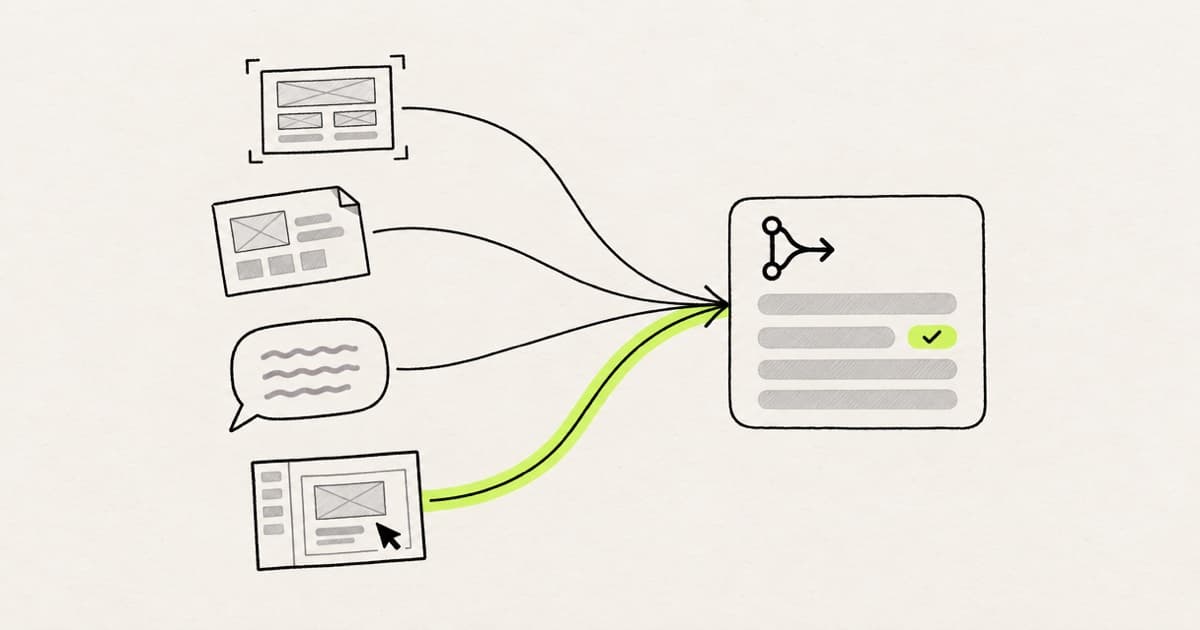
Design to code is any workflow that turns a design decision into a code change, and in 2026 there are four routes to it: a Figma file read by a coding agent or plugin, a screenshot or image, a plain prompt, or designing directly in code on a canvas. The variable that decides between them is how much of your codebase the route can see, from nothing, to a rules file, to the whole repository. This page covers all four, what each one does when the target is a product that already exists, and which one fits a given situation.
Key takeaways
- There are four routes from design to code: a Figma file read by an agent or plugin, a screenshot, a prompt, and design in code on a canvas.
- The deciding variable is how much of your codebase the route can see. Screenshot and prompt routes see none of it and invent components your repo already has.
- A change to an existing product needs four things the demos skip: design system reuse, tokens, the repo's conventions, and pull request review.
The four routes from design to code
Definition
Design to code is the work of turning a design, whether a Figma frame, a screenshot, a written description or a change made on a canvas, into code that a team can review and merge. It is also called UI to code, or image to code when the input is a picture. The output is a code change rather than a picture of one, so the measure of a route is how close its output lands to the codebase it is meant for.
The four routes differ in what they start from, and that shows in what they produce.
| Route | Start from | Best for | Where it stops | Typical tools |
|---|---|---|---|---|
| From a Figma file | A frame with components and variables | Teams whose source of truth is Figma | Mapping to your components is setup work | Figma MCP server with Claude Code or Cursor, Builder.io, Anima, Locofy |
| Screenshot to code | Any image of a screen | Reference screens, legacy UI, no Figma access | Sees pixels, not components, tokens, states or data | Claude Code, Cursor, v0, Anima |
| From a prompt | A sentence | New prototypes and 0-to-1 concepts | Builds a new project with its own components | v0, Lovable, Figma Make |
| Design in code | The running product on a canvas | Changes to an existing product | Needs a supported framework and a connected repo | Modeinspect, Onlook, Cursor Design Mode |
Every route produces code, and the difference is what the code is made of. A screenshot route and a prompt route see nothing of your product, so they invent a button when your repo already has one. The Figma route sees your design file and, with Code Connect or a rules file, a description of your components. A design in code route works on the repository itself, so the button it edits is the one your product ships.
The four routes differ in how much of your codebase they can see.
- From a promptsees a sentence Layout and color Components Tokens Conventions
- Screenshot to codesees pixels Layout and color Components Tokens Conventions
- From a Figma filesees the design file Layout and color Components Tokens Conventions
- Design in codesees the repository Layout and color Components Tokens Conventions
| Layout and color | Components | Tokens | Conventions | |
|---|---|---|---|---|
| From a promptsees a sentence | ||||
| Screenshot to codesees pixels | ||||
| From a Figma filesees the design file | ||||
| Design in codesees the repository |
sees it sees it through Code Connect, a plugin map or a rules file doesn't see it, so it invents it
Figma made the same point when it announced its MCP server: "if you only provide a screenshot of a component instance, the AI tool will spend a lot of time searching... By contrast, if Figma knows which components you're using, it can share the exact path" (Figma). The more of the codebase a route can see, the fewer guesses it makes, and guesses are where handoff work comes from. In Figma's designer and developer trends report, "Differences in assumptions" was the most cited collaboration challenge (Figma).
For how that shift changes the workflow itself, from a step-by-step handoff to iteration on working output, see rethinking the design to code workflow from Figma to code.
Route 1: from a Figma file
If your designs already live in Figma, this is the route to try first. There are two ways in, the MCP server driven by a coding agent or a converter plugin, and one choice at the end, the output format, which matters less than it looks.
The Figma MCP server and coding agents
MCP is a protocol that lets a coding agent call an outside server for information while it works. Figma's server was announced on June 4, 2025 (Figma) and became generally available on October 28, 2025 (Figma, Schema 2025 recap). Once connected, an agent can ask it for the design context of a selection (React and Tailwind by default), its variables and styles, a screenshot, a Code Connect map and a search across the design system (Figma developer docs, tools and prompts).
What the server does not do matters as much. Figma's docs say "The MCP server works with any language or framework. Its job is to give your agent design context, not production-ready code" (Figma developer docs). The agent writes the code, and how well it matches your repo depends on what the agent knows about your repo. Code Connect, if set up, links your Figma components to your code, and those connections "provide more code context via the Figma MCP server". It needs a Dev or Full seat on the Professional, Organization or Enterprise plan, and Professional allows one active library and one active framework (Figma developer docs, Code Connect). Without it, the server ships a prompt that "Creates a rules file that gives your agent the context it needs to turn designs into code that fits your codebase, design system, and tech stack" (Figma developer docs).
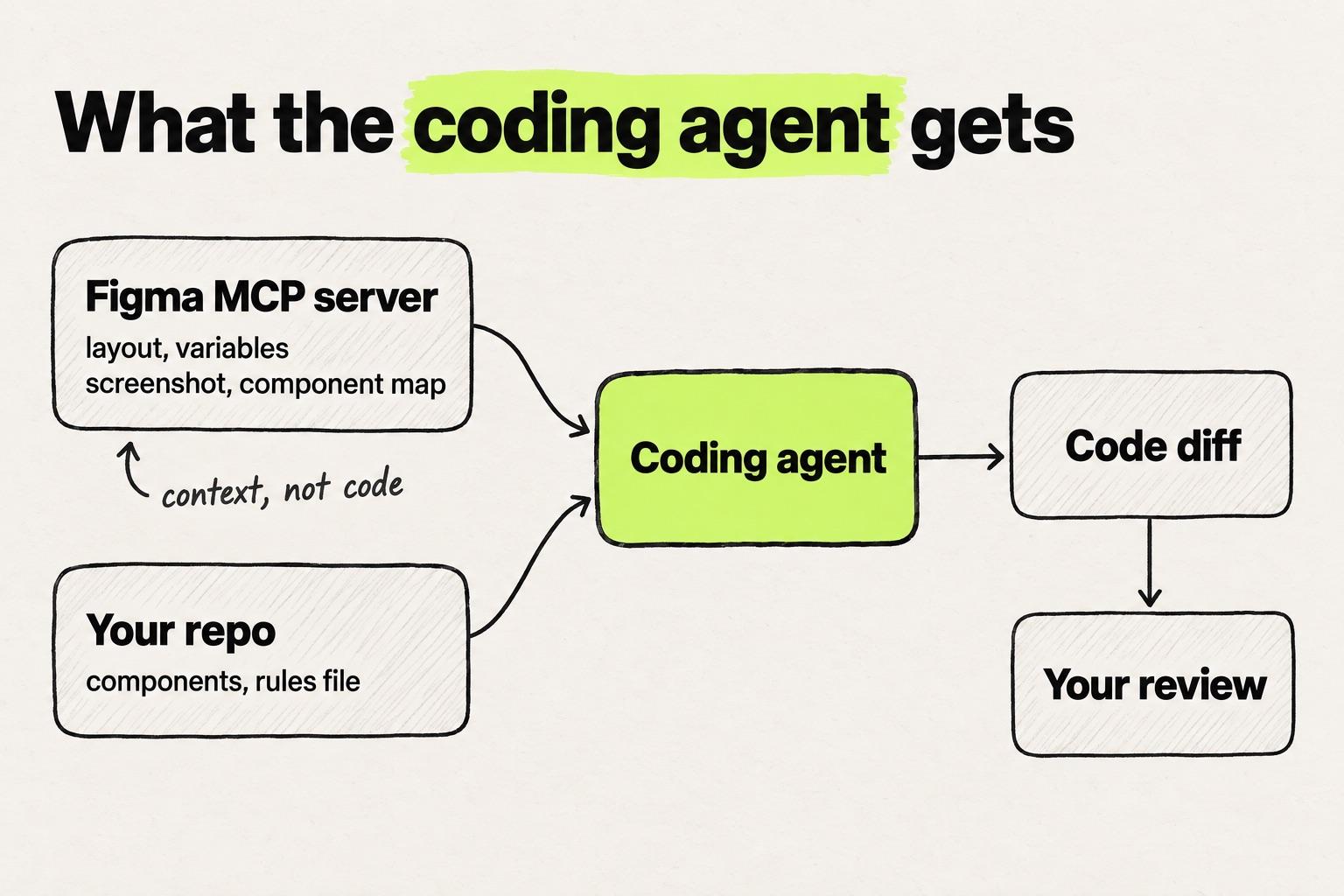
Check your seat before you plan a workflow around it. The remote server is available on all seats and plans, and the desktop server needs a Dev or Full seat on a paid plan. Figma names VS Code, Cursor, Windsurf, Claude Code and Codex as clients (Figma Learn). Tool calls are capped: up to 20 a month on Starter, 200 a day on a Professional or Organization Dev or Full seat, and 600 a day on an Enterprise Dev or Full seat (Figma developer docs, rate limits). Figma reserves the right to change these, and twenty calls a month can be gone in an afternoon. The Figma MCP server guide covers setup, what it can do and where it stops.
The loop looks the same in either agent: register the server, paste a link to a frame, ask for the implementation, and end with "create a pr for my changes" (Claude Code docs). In Cursor the server goes into mcp.json (Cursor docs, MCP). Setup differs only in where the server is registered, so Figma to code with Claude Code and Figma and Cursor with the MCP are the same workflow with a different client.
Two things to expect after the first pull request. One is selection size. Figma advises you to "Break screens into smaller parts (like components or logical chunks)", because "Large selections can slow the tools down, cause errors, or result in incomplete responses" (Figma developer docs). The other is that the output is a diff. Before an engineer sees it, the designer has to judge whether the agent touched only what they meant, and a two-pixel padding fix goes through the same prompt loop as a new screen.
Converter plugins
Converter plugins predate the MCP server and still cover cases it does not. Builder.io's Visual Copilot, launched October 12, 2023, "uses AI to map reusable components in your Figma file to those in your code repository and generates code using your existing components when you have them", with output in React, Vue, Svelte, Angular, HTML and others (Builder.io). Its newer Builder Code product (called Fusion until September 2026) imports Figma designs, builds UI from your components, and packages work "into branches and pull requests so your team can review changes" (Builder Code, Builder.io). Anima generates "responsive HTML or React from your design, carrying its structure, assets, and visual details into the result" (Anima). Locofy "scans your design files and splits the code into reusable components with props" (Locofy) and can "generate frontend code that uses your own code components" (Locofy).
Where they stop is the same place. Each one starts from the design file, and everything it knows about your components comes from a mapping you configure. If the mapping is thin, the plugin does what the frame says and rebuilds the component. If it is complete, someone maintains it as the design system changes.
By output: React, HTML and CSS, Tailwind, Next.js
The output format is the least important choice on this route, because a Figma frame carries no information about it. The MCP server defaults to React and Tailwind, and every plugin above lets you pick. What matters is that the format matches the repo the code is going into, and each format fails in its own way when it does not. Figma to React goes wrong when the generated component ignores the props your existing one already has. Figma to HTML and CSS is the simplest output and the least reusable, which is fine for a static page and wrong for an app. Figma to Tailwind is only mergeable when the classes map to your theme file rather than to arbitrary pixel values. Figma to Next.js adds routing and server components, which a frame says nothing about.
Route 2: screenshot to code
Image to code works because coding agents now read pictures. Claude Code lets you "Drag and drop an image into the Claude Code window" or paste one, and its docs give "Generate CSS to match this design mockup" as an example prompt (Claude Code docs). Cursor accepts a dropped file or a pasted screenshot and lists "implementing design mockups" as a use (Cursor docs). v0 "will analyze the layout, colors, and components in the image, then generate code that closely replicates the design" (v0 docs), and Anima turns a screenshot or mockup into an editable HTML or React app (Anima).
What a model can read from an image is layout, hierarchy, approximate spacing, colors and type. What it cannot read is anything the pixels do not show: which of your components a box is, which token a color maps to, what the hover, empty and error states look like, and where the data comes from. Screenshot to code gives you a faithful copy of one state of one screen, built from parts the model made up on the spot.
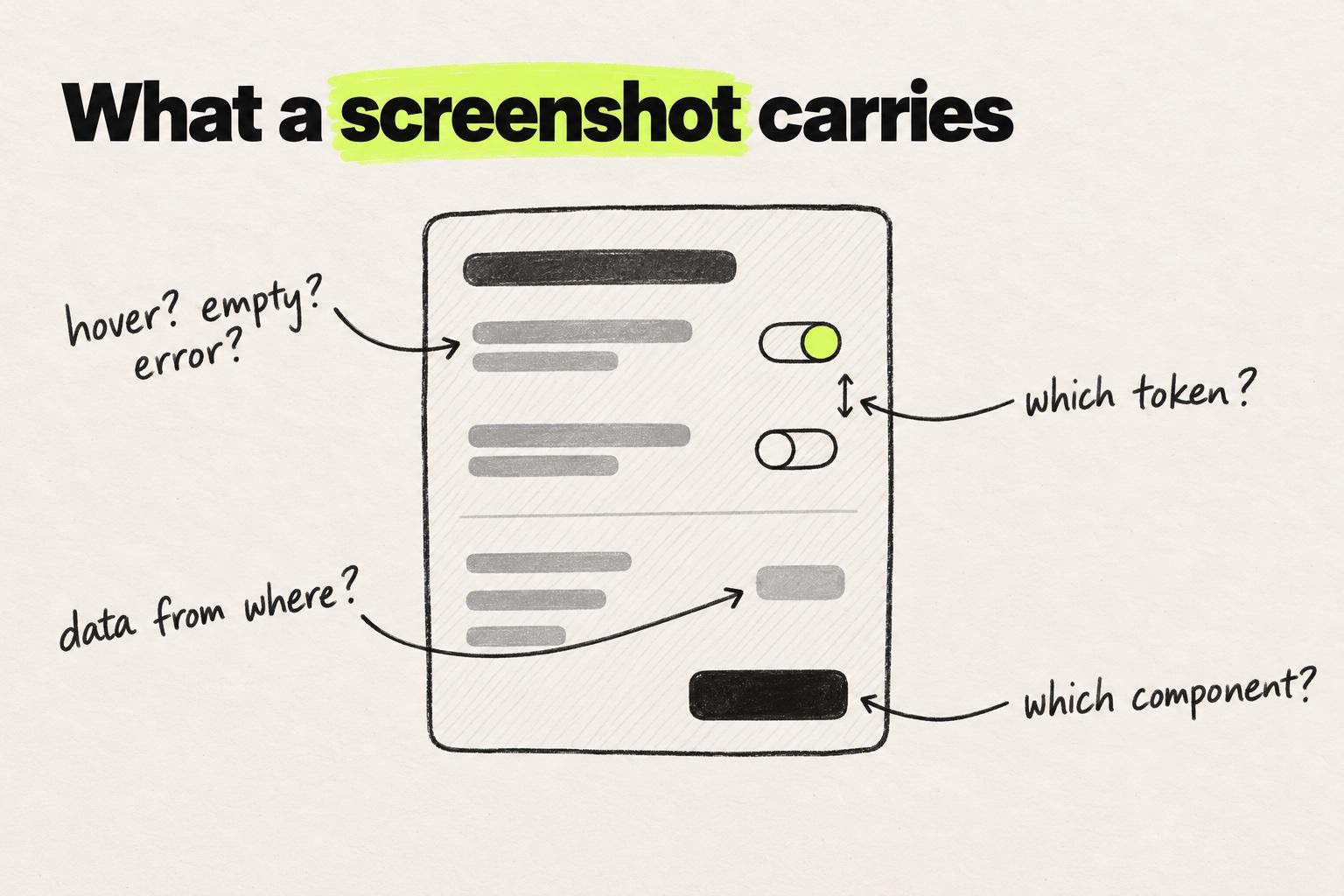
That makes it the right route in a few situations: a reference from another product you want in your stack as a starting point, a legacy screen with no design file, or no Figma access at all. In all of those, the image is all you have, and a rough draft in code beats a rough draft in a design file because you can run it.
To make it work in a real codebase, give the agent what the picture lacks. Name the target: "this is the SettingsPanel in components/settings". Point at the tokens file and the component folder so it imports instead of inventing. Crop the screenshot to one component. Ask the agent to list what it guessed. Then read the result as a draft. In the Stack Overflow 2025 Developer Survey, the frustration developers cited most was "AI solutions that are almost right, but not quite" (Stack Overflow). Almost right is fine for a draft and expensive for a merged pull request.
Route 3: from a prompt
Prompt-first design to code AI tools build an app from a description. v0 generates "Next.js, React, TypeScript, Tailwind CSS, and shadcn/ui" (v0 FAQ), and it is the one tool in this group that can also start from your repo: "You can import a GitHub repository and work on it directly in v0", on a working branch, with a pull request opened from v0 (v0 docs, GitHub). Figma import is on paid v0 plans (v0 docs, Figma).
Lovable describes itself as "a full-stack AI development platform for building, iterating on, and deploying web applications using natural language" (Lovable docs). It syncs changes to GitHub, but "Git sync always creates a new repository", connecting an existing one is unsupported, and it "only edits and syncs one branch at a time" (Lovable docs, GitHub). Designs come in through a Figma plugin, the Figma MCP or a .fig upload (Lovable docs, Figma).
Figma Make is Figma's "prompt-to-app capability" (Figma), generally available since July 24, 2025 (Figma). Pasting a Figma design into the prompt lets Make match its style and spacing, and since Schema 2025 you can bring a React design system into Make through npm packages (Figma). Getting code out is a "Download code" button that produces a .zip, on a Full or Dev seat (Figma Learn), or a one-way push to a GitHub repository that Make creates, always to its default branch (Figma Learn). Make cannot push to a repository you already have. Working in your team's existing codebase and opening a pull request from Make is a closed beta, Mac only (Figma Learn).
This is the right route for a prototype and the wrong one for a change to an existing product, and the reason is the diff. A pull request is a set of changes to files that already exist. A prompt-first tool has none of those files, so it creates its own: its own Button, its own color values, its own folder layout. An engineer cannot merge a second app into the product, so either someone rebuilds the prototype by hand or it stays a prototype. v0's repo import narrows the gap for teams already on its stack. Prototyping on the real product is the other way around that trade-off: the sketch is built from the product's own parts, so it can become the feature.
A pull request edits files your product already has. A prompt-first tool starts its own.
- app/
- settings/
- page.tsxM
- components/
- ui/
- button.tsx
- card.tsx
- styles/
- tokens.css
One file modified. It imports the Button and Card that exist and reads the tokens.
- new-app/A
- app/
- page.tsxA
- components/
- Button.tsxA
- SettingsCard.tsxA
- globals.cssA
- package.jsonA
Every file new: its own Button, its own colors, its own layout. Someone moves it into the product by hand.
Route 4: design in code on a canvas
Definition
Design in code means changing the running product on a canvas with design controls, so the code is the output of the design work instead of a translation of it. The designer does not write the code. Engineers still review the pull request.
This route reverses the other three: you start in the product, and the design work produces the change. What each tool is connected to decides how a change lands in code.
Onlook started as an open-source visual editor under the Apache 2.0 license, where you "Visually build, style, and edit your code with AI" (Onlook on GitHub). Its repo is explicit about scope: "We are focused on making it work well with Next.js and TailwindCSS for now". The open-source editor is free to self-host. Its site says you can "bring your existing React codebase and start building" (Onlook), but the hosted product is a closed beta with custom pricing (Onlook pricing).
Cursor's Design Mode lets you "click an element, draw on the page, or describe a change by voice" in an app running inside Cursor's browser, and the agent receives the element, its code and a screenshot before it edits the code (Cursor docs, Design Mode). The app has to be running in Cursor's browser, and every change, however small, is an agent edit to the checkout Cursor has open. The trade-offs for a Figma-first designer are covered in Cursor for designers.
Modeinspect is a web app connected to the codebase that runs the product in a private cloud environment, so the designer does not set up a local copy. The canvas gives layout and style controls on the real components, with components matched one to one and tokens read from the codebase, running on live data, plus AI for exploring directions and preview links for feedback. A build can start from a Figma frame, a screenshot or a prompt, or from the canvas itself. A change leaves as a pull request with context, specs, preview links and a change log. The scope is Next.js React codebases that use Tailwind. Hobby is free and Pro is $20 a month per person (pricing).
Design in code does not mean learning to code. In Figma's 2026 AI report, the share of designers participating in development nearly doubled in a year (Figma). Participating is broader than writing code, and a canvas on the codebase is one way to do it without writing any. When you compare tools on this route, test what the canvas is connected to and what a change looks like when it reaches an engineer. That checklist is what to look for in a React visual editor. A separate question is whether the canvas can replace part of the Figma workflow, which comes down to Figma alternatives for product teams that ship code.
Design to code for an existing codebase
Demos of design to code start from an empty folder. The design work this page is about is a change to a product that exists. That case adds four constraints that decide whether the code gets merged, and the Figma, screenshot, prompt and design in code routes each handle them differently.
Design system reuse. The generated code should import the Button that exists, with its existing props, not build a new one that looks the same. Every parallel component is a future inconsistency and a future ticket. Routes that see the repo have the existing Button in front of them, and whether they import it is what review checks. Routes that see a mapping (Code Connect, a rules file, a plugin's component map) do it when the mapping is complete. Routes that see nothing cannot.
Tokens. A hardcoded #1F2937 is correct today and wrong the day the palette changes. In zeroheight's Design Systems Report 2026, most design systems include design tokens, but only about half have those tokens in design tools, code and documentation at the same time (zeroheight). If your tokens live in code and not in Figma, a Figma-first route cannot reference them, and the code has to be corrected afterwards. How tokens travel is its own topic: how design tokens get from Figma into code.
The same button change, as a diff an engineer merges and one they rewrite.
+function SaveButton() {+return (+<button className="rounded-[6px] bg-[#1F2937] px-[14px] py-2 text-white">+Save+</button>+);+}
- A second button next to the Button the repo already has. Every copy is a future inconsistency.
- A hex color and pixel values that are right today and wrong the day the palette changes.
−<Button variant="secondary">Save</Button>+<Button variant="primary" size="sm">Save</Button>
One line: the existing component, its existing props, and the tokens that come with them.
Conventions. Every codebase has a file layout, a styling system (Tailwind, CSS modules, styled-components), naming rules and a linter. Code that ignores them is technically fine and practically unmergeable, because the reviewer would have to rewrite it to make it fit. An agent working in a checkout can read the conventions. A tool outside the repo needs to be told, which is why Cursor recommends a design system rules file (Cursor) and why Figma's MCP server ships a prompt to write one.
Pull request review stays the gate. No route removes review, and the evidence says it should not. In the 2025 DORA report, nearly a third of technology professionals reported little or no trust in AI-generated code (Google Cloud). Designers are already inside that loop: in the AI in Design Report 2026, half of designers had shipped AI-generated code to production and most named inconsistent or unreliable output quality as a frustration (Designer Fund and Foundation Capital). A reviewable pull request is small, touches the component it says it touches, and reuses what the repo has. It helps when it arrives with a preview link, the spec and a change log, so the engineer checks intent instead of reconstructing it. That is what a Modeinspect pull request carries, and what engineers get in the pull request is described on its own page.
The same constraints apply after a feature ships. Fixing spacing, states and responsive issues in the build is design QA, the shortest version of design to code: the design exists, the code exists, and the change is the gap between them. Prelude, a Modeinspect customer, went from about 31 days to 13 from idea to merged pull request after its designers started working on the real product in Modeinspect (Prelude customer story).
Design to code tools in 2026
| Tool | Route | What it does | Where it stops |
|---|---|---|---|
| Figma MCP server | Figma file | Design context, variables, screenshots and Code Connect maps for an agent | Not designed to return production-ready code, call caps by seat |
| Claude Code | Figma file, screenshot | Agent in your repo, reads images and MCP servers, opens PRs | Terminal, no canvas, needs a checkout |
| Cursor | Figma file, screenshot, design in code | Agent in your repo, image input, Design Mode on a running app | App must run in Cursor's browser, every visual change is an agent edit |
| Builder.io | Figma file | Maps Figma components to code components through component indexing, Builder Code opens branches and PRs | Output depends on how well your components are indexed |
| Anima | Figma file, screenshot | HTML or React from a design or image, MCP for agents | Produces an editable HTML or React app, not a change to your repo |
| Locofy | Figma file | Splits designs into components with props, can use your own components | Starts from the design file, not the product |
| v0 | Prompt, screenshot, Figma import | Next.js, React, Tailwind and shadcn/ui apps, imports a GitHub repo, opens PRs | Its own stack, Figma import on paid plans |
| Lovable | Prompt, Figma import | Full-stack apps from natural language, syncs to GitHub | Cannot import an existing repo, one branch at a time |
| Figma Make | Prompt, Figma design | Functional prototypes, React design system via npm | Code leaves as a zip or a push to a new repo Make creates; existing repos only in a closed beta |
| Onlook | Design in code | Open-source visual editor for React apps, free to self-host | Next.js and Tailwind for now, hosted product in closed beta |
| Modeinspect | Design in code, plus Figma frame, screenshot or prompt | Canvas on the connected codebase, components 1:1, tokens, live data, PR from the canvas | Next.js React codebases that use Tailwind |
One pattern shows in the table. Tools that can import or connect to an existing repo (Claude Code, Cursor, v0, Onlook, Modeinspect, Builder Code) are the ones whose output can become a pull request against the product. Tools that start from a design file or a prompt alone produce a new artifact that someone then moves into the repo, even when the tool can push to GitHub as Locofy can, and that move is where the design drifts. Pricing and setup steps belong to a longer comparison of design to code tools, and this table leaves them out.
Which route to pick
Pick the route by what you are starting from and how much of the codebase it needs to see.
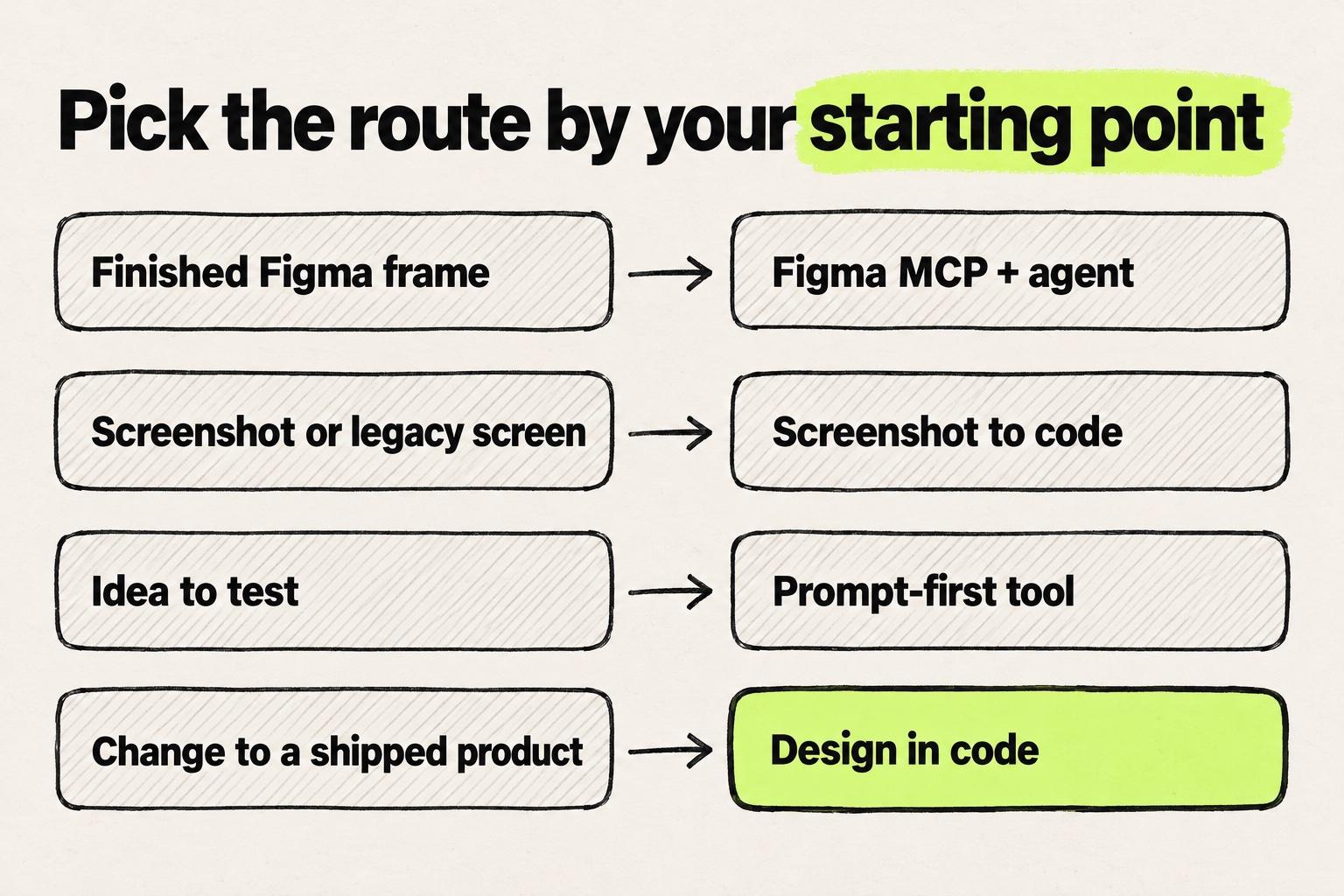
- The design is a finished Figma frame and an engineer will implement it. Use the Figma MCP server with Claude Code or Cursor, set up Code Connect or the rules file first, and select one component at a time. Check the seat's call cap before the sprint.
- The design is a screenshot, a reference from another product or a legacy screen. Screenshot to code, with the target component and tokens named in the prompt, and treat the result as a draft to review.
- You need a prototype to test an idea and it will not ship as-is. A prompt-first tool: v0 if you want the option to work on your repo later, Figma Make if the design system already lives in Figma, Lovable for a fresh full-stack app.
- You are changing a product that exists, on a Next.js React codebase, and you are a Figma-first designer. Design in code on a canvas connected to the repo. Cursor Design Mode if you already run the product in Cursor, Onlook if you want to self-host an open-source editor on a Next.js and Tailwind app, Modeinspect if you want the canvas, the design system and the pull request without a local setup.
- Your team has both profiles. Engineers keep their agent, designers work on the canvas, and every change goes through the same pull request review on the same repo.
Whatever the route, the decision variable stays the same: how much of the real codebase the tool can see before it writes a line. If you want to see the design in code route on your own product, book a demo.
Frequently asked questions
What is design to code?
Design to code is the work of turning a design, such as a Figma frame, a screenshot, a written description or a change made on a canvas, into code a team can review and merge. The four common routes are a Figma file read by a coding agent or plugin, a screenshot, a prompt, and designing directly in code on a canvas. They differ mainly in how much of the target codebase they can see.
Can Figma convert a design directly to code?
Not on its own. The Figma MCP server gives a coding agent such as Claude Code or Cursor design context from a selection, and Figma's docs say it is not designed to return production-ready code. The agent writes the code, and Code Connect or a rules file is what maps Figma components to the components in your repository.
Can you convert a screenshot to code?
Yes, Claude Code, Cursor, v0 and Anima all accept an image and produce markup that matches its layout and colors. The result is a starting point, because the model sees pixels and cannot know which of your components, tokens or states the picture shows. Point it at the target component and tokens in your repo before you ask for the code.
What does designing in code mean?
Designing in code means changing the running product on a canvas with design controls, so the code is the output of the design work rather than a translation of it. The designer does not write the code, and engineers still review the resulting pull request. Onlook, Cursor Design Mode and Modeinspect are tools built around this route.
Does design to code work with an existing codebase?
It works when the route can see the codebase: the existing components, the design tokens, the file and styling conventions, and the pull request review that gates every change. Prompt-first tools build a fresh project, Figma and screenshot routes need a mapping or rules file, and design in code tools work on the connected repository directly.
How can designers see which components exist in the codebase while designing?
It depends on the route. In Figma, Code Connect links each library component to its code component, so the agent reuses it, and Storybook documents what exists without stopping drift. In a coding agent, ask it to list the components in the repo before it changes anything. On a canvas connected to the codebase, such as Modeinspect, the team's React components are found after setup, so they can be dragged onto the canvas and edited by their props. Mapping design components to code components is the setup step that decides whether the generated code imports the existing Button or builds a new one.