AI in UX design is useful at every stage when it starts from real material: your interviews, your product, your data. An AI UX design tool does harm when it stands in for that material, with fake users, happy-path flows and look-alike screens.
The gap is easy to miss because the output looks finished. A synthetic user answers every question, and a generated screen looks like your product until an engineer opens the code.
What follows takes the stages in order: research, flows and wireframes, UI and audits. A last section covers the step that decides the rest: testing the flow on the real product, with real data.
The full roundup of AI UX design tools, with prices, is in the guide to AI tools for designers, sorted by where the output lands.
Key takeaways
- Research needs real users, because synthetic users give shallow or overly favorable feedback. Use AI to query real sessions, and keep only the insights you can trace back to one.
- A generated flow shows the happy path on placeholder content. Write the empty, loading and error states yourself before you prompt, and check every screen against that list.
- AI screens look polished but rarely follow your design system. Check them for hardcoded colors and spacing before anyone builds on them.
- Test the flow with real data, on the real product where you can. When you prototype where the flow will ship, the version users test is the version engineers review.
What AI does in UX design, stage by stage
If you are the only UX designer on a team of ten engineers, leadership probably wants visible AI results from you. You have likely tried the obvious moves already. You asked ChatGPT for a persona, and it agreed with every assumption you gave it. You tried a prompt-to-UI tool, and the screens looked finished but ignored your components.
Both results follow the same rule, and it holds at every stage. AI helps when it works from real material. It hurts when it stands in for that material. Real material means things you can check: a session recording, a support ticket, the running app, your production data.
Here is the rule, stage by stage:
- Research. It helps when it analyzes your own sessions and links each insight to its source. It hurts when synthetic users answer instead of people.
- Flows and wireframes. It helps with a first map of the journey. It hurts when the happy path on placeholder content passes for the whole flow.
- UI. It helps when you hand it your own sketches or Figma frames. It hurts when the screens ignore your design system.
- Audits and accessibility. It helps with a first pass over many screens. It hurts when its findings are read as a verdict.
- The real product. It pays off most here, where users test the flow in the running app with their own data.
AI helps where it works from real material, and hurts where it stands in for it.
- Where it helps
- Analyzing your own sessions, each insight linked to its source
- Where it hurts
- Synthetic users answering instead of people
- Tools in this post
- DovetailMaze AI moderator
- Where it helps
- Drafting a first map of the journey
- Where it hurts
- Passing off the happy path on placeholder content as the flow
- Tools in this post
- FigJam AIUX PilotStitch
- Where it helps
- Working from your own sketches and Figma frames
- Where it hurts
- Look-alike screens that ignore your design system
- Tools in this post
- Figma Check designs
- Where it helps
- A first pass over many screens
- Where it hurts
- Findings read as a verdict
- Tools in this post
- Stark Sidekick
- Where it helps
- Users testing the flow with their own data
- Where it hurts
- Transient states that are over in seconds
- Tools in this post
- Cursor Design Mode
| Stage | Where it helps | Where it hurts | In this post |
|---|---|---|---|
| Research | Analyzing your own sessions, each insight linked to its source | Synthetic users answering instead of people | DovetailMaze AI moderator |
| Flows and wireframes | Drafting a first map of the journey | Passing off the happy path on placeholder content as the flow | FigJam AIUX PilotStitch |
| UI | Working from your own sketches and Figma frames | Look-alike screens that ignore your design system | Figma Check designs |
| Audits and accessibility | A first pass over many screens | Findings read as a verdict | Stark Sidekick |
| The real product | Users testing the flow with their own data | Transient states that are over in seconds | Cursor Design Mode |
The five stages of UX work, with the tools each section quotes from their own docs and pages.
The rest of the product design workflow is covered in where AI fits in product design work.
AI in UX research: faster analysis, fake users
AI speeds up research analysis when every answer points back to a real session. It fails when it replaces the participant.
Dovetail's chat lets a researcher "conversationally query everything from sales calls to support tickets, with every answer traced back to the source." Ask which onboarding step confused people, and the answer points to the calls and tickets it came from.
Maze's AI moderator runs the interview itself: "It asks one question at a time and uses the participant's own language when following up, so conversations feel natural and grounded." When a participant speaks in generalities, "it asks for a specific recent example".
Feifei Liu and Kate Moran at NN/g, writing on the limits of AI research tools, set one test: "If doublechecking isn't possible, don't use it." They also warn that "AI systems have a dangerous tendency to provide incorrect information that sounds plausible." In her piece on methodological problems in research tools, Maria Rosala says tools that analyze usability tests from transcripts alone are "selling you snake oil".
Doublechecking means opening the clip or transcript behind each claim before it goes into a deck. A finding the tool cannot trace back stays out.
Synthetic users cannot pass the doublechecking test. In NN/g's article on synthetic users, Maria Rosala and Kate Moran write: "Synthetic users are fake users generated by AI. While there may be a few use cases for them, user research needs real users."
Their feedback leans one way: "Since AI loves to please, every idea is often seen as a good one." They leave a narrow opening: synthetic users "are useful for desk research and generating hypotheses, but not for final decision-making."
Dovetail's Digital Twin sits in between. Its docs describe "an AI built only from what a real customer, segment, or persona has said across your interviews, calls, tickets, and surveys". It is still not a participant.
An insight you can open the session for is research. A synthetic user's answer has no session to open.
Admins export the list to a spreadsheet to edit many rows at once.
SourcesSession 3 · 12:41Session 7 · 03:15Ticket 482Users would love bulk editing and would use it every day.
Sources- No clip, transcript or ticket to check, and every idea scores well. NN/g: synthetic users “seem to care about everything.”
Example insights. Each source under From your sessions opens the clip or ticket the finding came from.
AI for user flows and wireframes: the happy path comes free
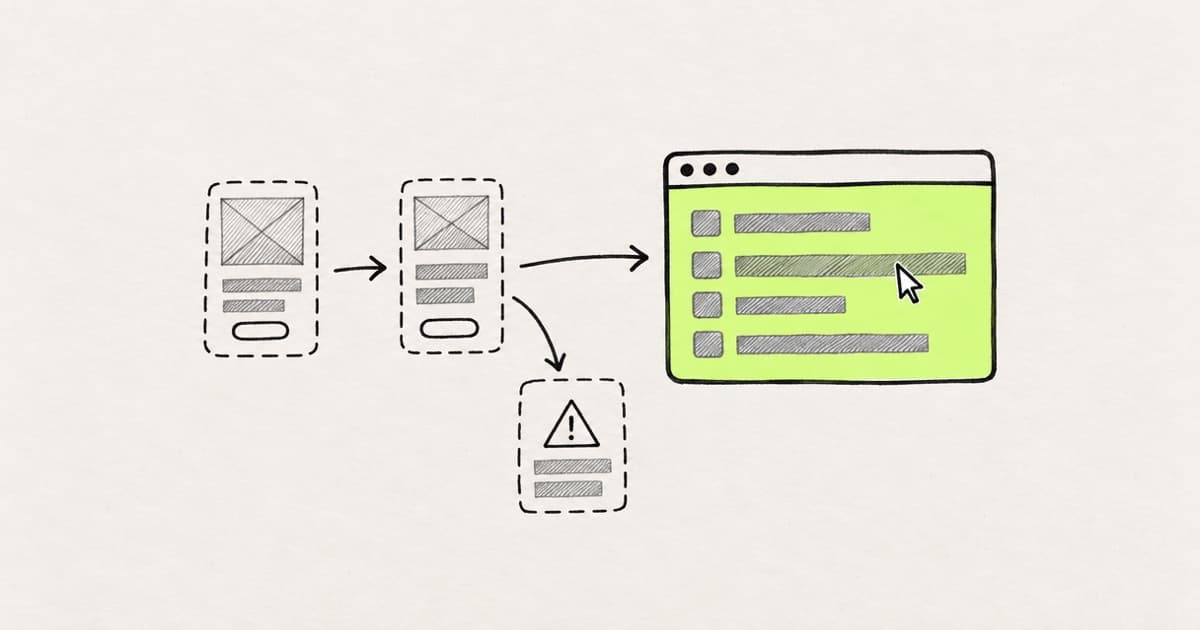
AI will draft a user flow from one prompt. What comes back is usually the path where everything goes right, on placeholder content. The states that make UX work hard are left to you.
In FigJam, a prompt becomes a flow chart. Figma's help article on FigJam AI says, "Currently, FigJam AI can create flow charts, Gantt charts, and org charts." UX Pilot's homepage headline reads: "Generate every screen in the UX journey." In Google's Stitch, a click on a generated screen can produce "logical next screens based on the click".
On the happy path the user has data, fills in every field correctly and the server answers. In NN/g's guide to testing complex interactions with AI prototypes, Megan Chan warns that some issues "might not emerge if participants are shown only one happy path". She adds that "AI-generated prototypes may look complete while introducing all sorts of assumptions and inaccuracies".
Placeholder text makes it worse. Evan Sunwall at NN/g, writing on promptframes, puts it plainly: "Designs with poor content fidelity are too abstract for users to understand." He adds: "In UX, remember that the content inspires feedback, not the container."
Chan's advice is to specify, before prompting, what "even edge cases, like empty states and error states, should look like". Write the list yourself: empty, loading, error, partial data, no permission.
For a file upload, that means no files yet, a file that is too large, a failed upload and a slow connection. Put the list in the prompt and check every screen that comes back against it. Turning those screens into a clickable prototype has its own trade-offs, covered in what AI prototyping solves and where it breaks.
The prompt returns the happy path. The other states of the flow are the UX work.
Too large. Files can be up to 25 MB.
- Empty: what a new account sees before the first upload, and the one action that gets it started.
- Error: a file over the limit, with the limit and what to do next.
- Uploading: progress on a slow connection, and a way out.
One upload step from a generated flow, in the state it came back in and three of the states it left out.
AI for UI design: polished screens, ignored design systems
AI produces polished UI quickly, and it does better when you hand it your own sketches or Figma frames. Huei-Hsin Wang and Megan Brown at NN/g studied AI prototyping in real design contexts and found that "AI prompts that included attached design artifacts resulted in more streamlined outputs."
On an existing product, the screens rarely follow the design system the product is built on. NN/g's status update on AI design tools said in May 2025: "Currently, no genAI tool effectively supports design systems."
Wang and Brown also found that "many AI-generated screens appear flat and interchangeable." The tools "default to component libraries like Shadcn and front-end frameworks like Tailwind CSS". The screens "lack the underlying structure, logic, and usability considerations needed for real product development".
Check what AI hands you before anyone builds on it. Figma's Check designs "helps you quickly find and fix inconsistencies with your design system", such as hardcoded colors, text styles, radius and spacing. It is available on Organization and Enterprise plans. Figma notes that "Check designs does not use LLMs or generative AI." In a Tailwind codebase, run the same check on the code: search for raw hex values and arbitrary values in square brackets.
Making AI use your real components in the first place is its own problem, covered in how to get AI tools to use your design system.
AI for UX audits and accessibility: a first pass, not a verdict
Use AI audits to find candidates, and let a person decide which ones are real.
Christian Holst at Baymard tested ChatGPT-4 on UX audits and concluded that "ChatGPT-4 is very far from human performance". His advice on using it for audits: "we would caution against it".
Most of its suggestions were wrong or a waste of time, and it missed most of the real issues. Some of its advice "would likely be harmful to UX". It told Overstock, which uses pagination, to "either use infinite scrolling or 'load more'".
Kate Moran at NN/g wrote about Baymard's findings and widened them to the category: "Most AI-powered tools for UX lack reliability and accountability in their outputs."
Accessibility checks work the same way. Stark's Sidekick "scans the entire page of your Figma file within seconds" and "will provide suggestions for color contrast, typography, headings, and alt text". Run it on the Figma file before the flow is built.
A scan cannot finish the job. The W3C's guide to selecting web accessibility evaluation tools is direct: "Tools cannot check all accessibility aspects automatically. Human judgement is required."
GOV.UK's accessibility team tested accessibility checkers on the world's least accessible webpage and concluded: "No tool will be able to pick up every accessibility barrier on a website."
Once the flow runs, go through it with a keyboard and a screen reader before you call it accessible.
Where AI UX design pays off: on the real product
A better mockup does not finish UX work. Rough prototypes find the big problems early. What they miss is real data, which breaks layouts that looked finished on placeholder content, and the closest test of that is the real product, in front of real users. That is where AI pays off most: it can get a working version of the flow onto the product fast enough to test before it ships.
The same list looks finished on placeholder rows and breaks in four places on real data.
- The full name wraps, and the row grows taller than the rest.
- No photo, so the avatar falls back to initials. This name has four, and the circle cuts them off.
- No team set, so the chip renders empty.
- A shared inbox address has nowhere to break, so it runs under the chip.
One members list, rendered twice from the same CSS. Only the data changes.
Megan Chan's NN/g article describes a study at Ramp. "During usability testing, participants received a link to the working prototype, loaded with their own sanitized data." The result: "The prototype operated like the actual product, enabling participants to interact naturally and provide precise feedback."
Chan also warns that "you shouldn't assume that this AI-generated, high-fidelity interactive prototype is production-ready". A prototype that answered the research question still has to become the product. On a team with one designer to ten engineers, that is where the wait sits: between the approved flow and the shipped one. Engineers are not the cause. The approved flow waits in the same queue as everything else they build.
The shorter path is to prototype the flow where it will ship. Then the version users test is the version engineers review. Send participants a link to the running flow, give them a task, and watch where they stop. Fix what they hit, and the next session tests the fixed version. How to demo and test a prototype covers running those sessions.
Cursor's Design Mode post describes the fix step: "Click an element in the running app, prompt against that selected element, and let the agent edit the code."
Modeinspect puts running pages of your team's app on a design canvas, for Next.js React codebases that use Tailwind. You click through them like a user. Agents place your team's React components, and the panel offers values from your Tailwind theme but does not enforce them. Click Apply and the coding agent writes the code.
A preview link lets anyone open the flow without an account, so users can test it. Links expire after a while, and a new one can be copied at any time. One click opens a pull request for an engineer to review. The data is real only when your environment points at a real backend. For outside participants, use a sanitized copy, as Ramp did. The panel has no hover, focus or other state switcher, so you ask the agent for state changes.
A freelance design engineer put it this way: "I can finally throw away Figma and don't have to argue with my dev about 8 or 16px." He later stopped using the canvas, over responsive design, multi-screen flows and component states.
Transient states are where the real product loses. In a running app, an upload or a loading step is over in seconds, so every look at that screen means asking for the state again. For those states, a frame-by-frame click-through in Figma is still the better place to design.
When to skip the mockup covers which questions a prototype on the real codebase answers better. For the way of working, see vibe design on the product you already ship.
Where to start this week
Pick one flow you plan to change this quarter and take it through every stage, in this order:
- Run last month's interviews through a tool that links every insight to its session, then open the sessions behind the top findings.
- Write the states list (empty, loading, error) before you prompt for screens.
- Check every AI screen for hardcoded colors and spacing before anyone builds on it.
- Run an accessibility scan on the screens, then go through the built flow with a keyboard and a screen reader.
- Put the flow in front of users on the real product, with their own sanitized data.
If you have never shipped a change yourself, walk through a designer's first pull request and open one for the smallest fix on that flow.
Frequently asked questions
What is AI UX design?
AI UX design is the use of AI across user experience work: analyzing research, drafting flows and wireframes, generating UI and running audits. It helps when it works from real material, such as your own interviews, product and data. It hurts when it stands in for that material, as synthetic users and placeholder content do.
Which AI UX design tool fits each stage?
For research analysis, Dovetail traces each answer back to its source. For flows, FigJam AI drafts flow charts from a prompt. For accessibility, Stark's Sidekick scans a Figma page. For changes to the product itself, pick a tool that edits your codebase. Prices and more options are in the full roundup of AI tools for designers.
Can AI do user research?
AI can analyze user research, but it cannot replace the users. Maria Rosala and Kate Moran at NN/g write that synthetic users "often provide shallow or overly favorable feedback" and that "user research needs real users." Use AI to summarize and query real sessions, and trust only the insights you can trace back to a session.
Can AI create user flows?
Yes. FigJam AI creates flow charts from a prompt, and UX Pilot and Google's Stitch generate the screens. What comes back is usually the happy path on placeholder content. Megan Chan at NN/g advises spelling out empty and error states before you prompt, because some issues "might not emerge if participants are shown only one happy path".
Can AI check accessibility?
AI can run a first pass. Stark's Sidekick scans a Figma page and suggests fixes for color contrast, typography, headings and alt text. It cannot settle accessibility on its own. The W3C states: "Tools cannot check all accessibility aspects automatically. Human judgement is required." Treat AI findings as candidates, and have a person test the flow with a keyboard and a screen reader.
What UX work can AI not do?
AI leaves the judgment at every stage to a person. In research, it cannot stand in for real users. In flows, it usually returns the happy path and leaves the states to you. In UI, NN/g found in May 2025 that no generative AI tool effectively supported design systems. In audits, Baymard concluded that "ChatGPT-4 is very far from human performance".
How do I start using AI as a UX designer?
Start with one flow you already plan to change. Use AI to query your existing interview notes, and check each insight against its source. Write the empty, loading and error states yourself before prompting for screens. Check generated UI for hardcoded values. Then test the flow with users on the real product, with their own sanitized data, before it ships.